Units & Owners
A unit is any individual property in your building - an apartment, office, garage, storage room and so on. Units are the foundation of the system: fees, deposits, owners, residents and most statistics are all tied to them.
Open Units (the Properties menu) to see every unit grouped by type, with each unit's fees, deposits and payment status at a glance. Use Filter by type to narrow the list.
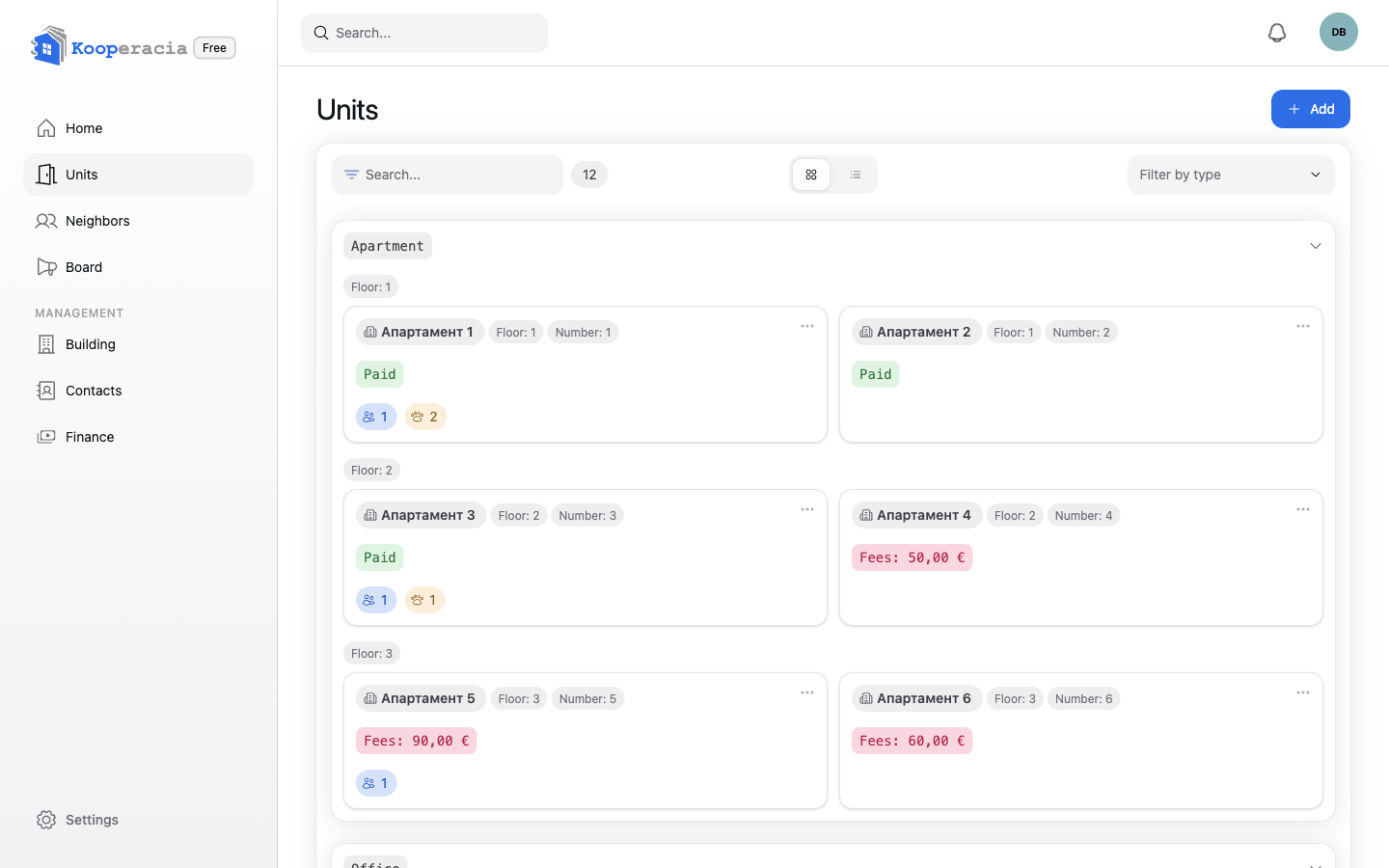
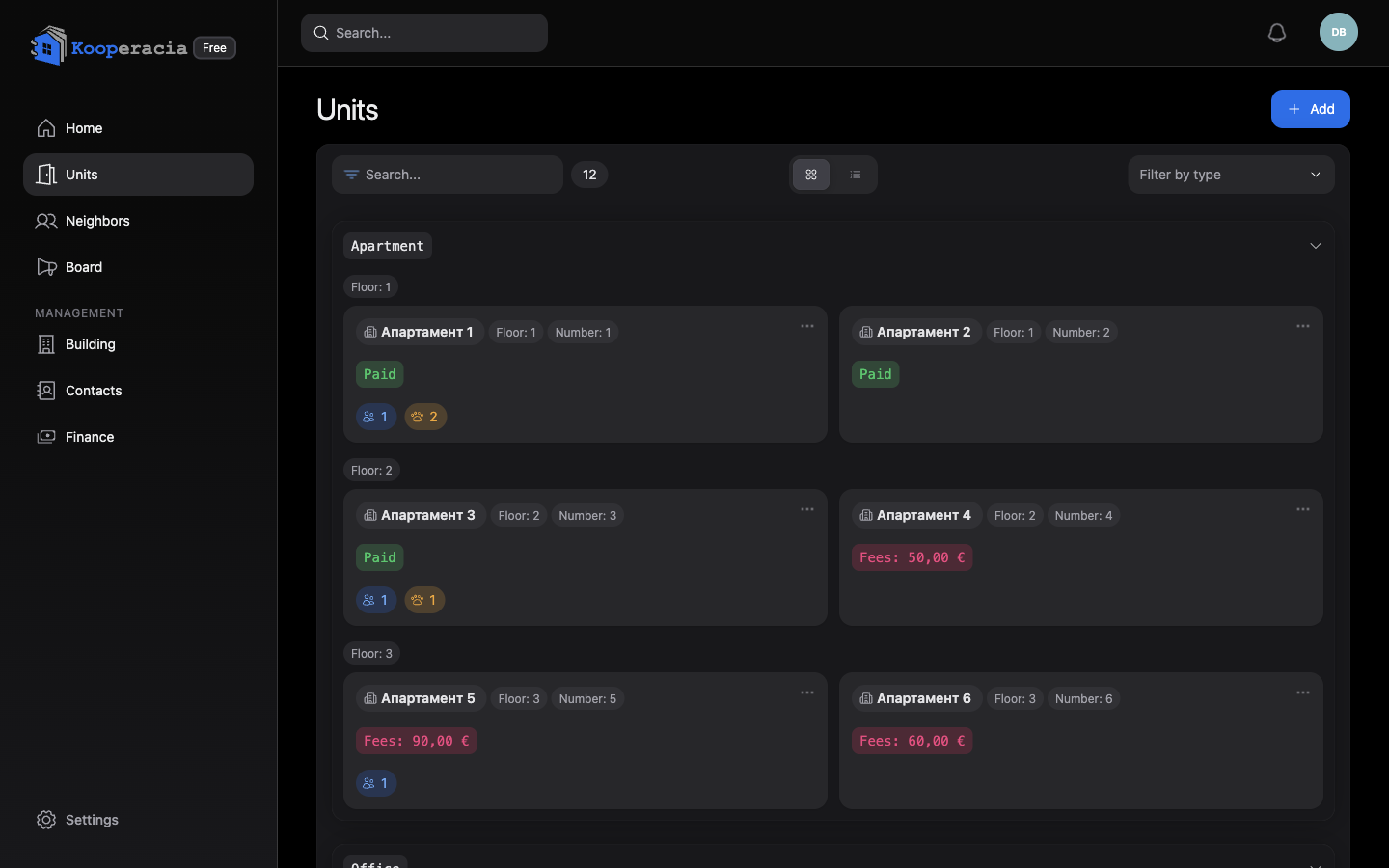 The Units page showing units grouped by type with the Add button and type filter.
Resident view: residents can browse all units and see each one's fees, deposits and paid status, but there's no Add button - adding and editing units, owners and fees is for managers. Residents manage and pay only for the unit(s) linked to them.
Adding a unit
Click Add. You can add a single unit, or switch to Multiple to create several at once. Then fill in the form:
| Field | Notes |
|---|---|
| Type | Apartment, Office, Atelier, House, Commercial, Garage, Warehouse, Service room, or Other. |
| Configuration | The layout / subtype (e.g. studio, one-bedroom, two-bedroom, maisonette or penthouse for apartments). |
| Name and Number | A label and number for the unit, e.g. "Apartment 11". |
| Section | Which entrance / section the unit belongs to, in multi-entrance buildings. |
| Floor | The floor the unit is on. |
| Built-up / Usable / Common area | Areas in square metres, used for fee calculations. |
| Ideal share | The unit's share of the common parts (used when fees are split by ideal share). |
| Purpose | What the unit is used for. |
| Orientation | The direction the unit faces (North, South, etc.). |
| Notes | Any extra details. |
Tip: Set the ideal share accurately - the fee wizard can split costs proportionally by it. See Finance.
Owners, tenants and residents
Each unit can have one or more people linked to it, each with a role:
| Role | Meaning |
|---|---|
| Owner | Owns the unit. |
| Tenant | Rents and lives in the unit. |
| Landlord | Owns but rents it out. |
| Resident / Guest | Lives in or occupies the unit without ownership. |
A person linked to a unit can see that unit and pay its fees. Add people directly on the unit, or link them from Contacts.
Each link can also record a relation to the owner (for example spouse, child or tenant) and the dates the role started and ended. Use History on a unit's people to review every owner and resident the unit has had over time, with their roles, relations and dates.
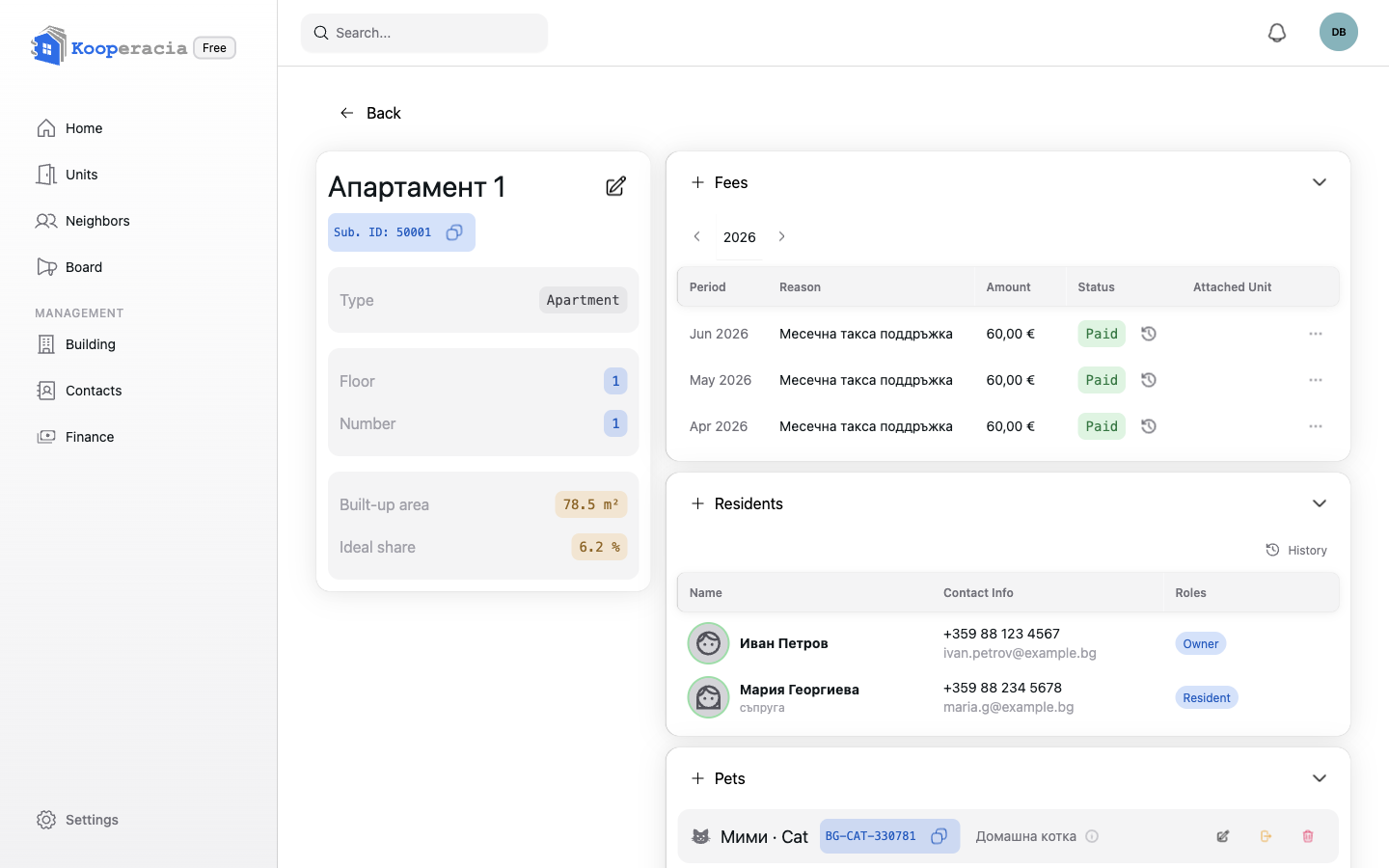
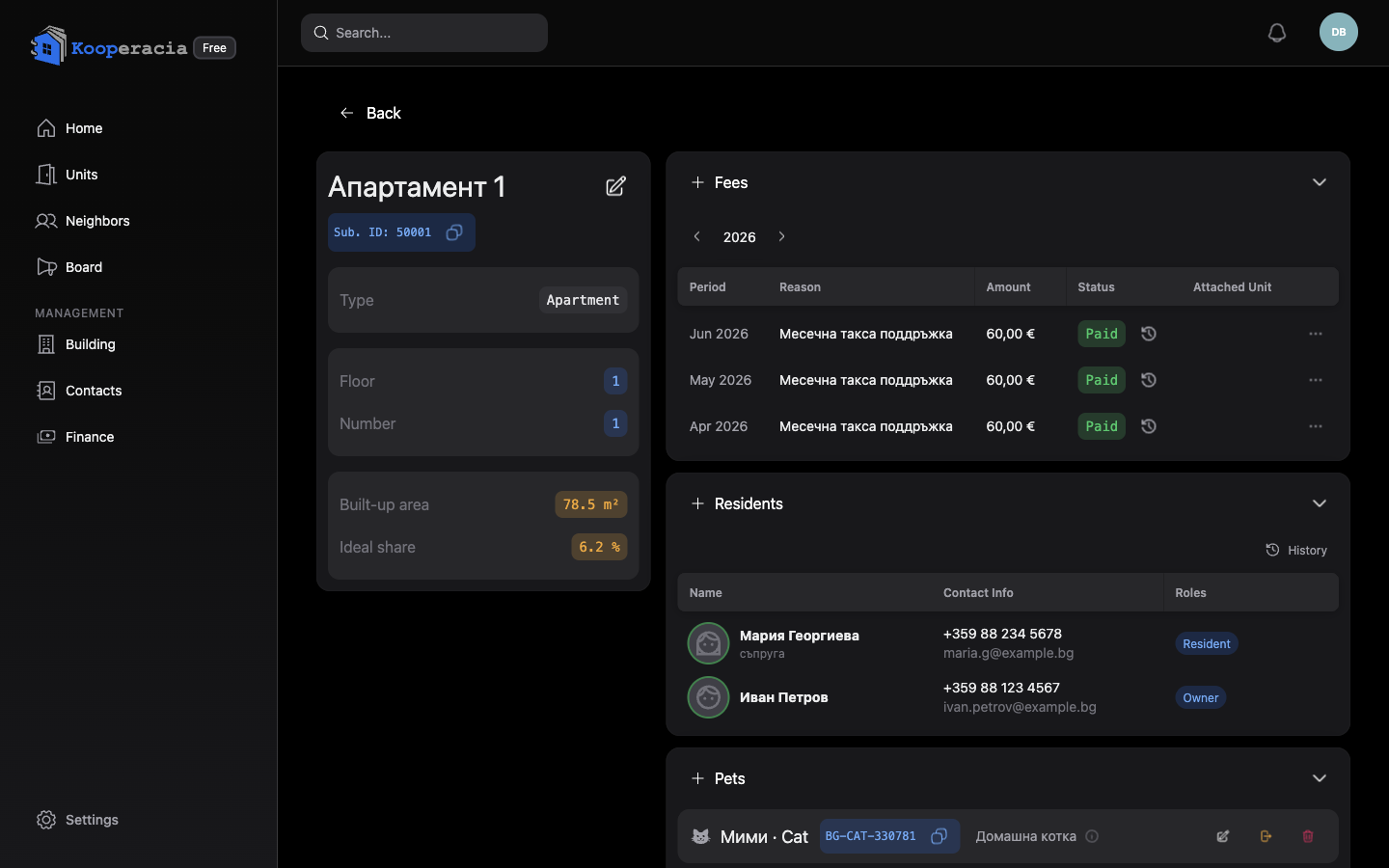 A unit's detail view showing its owners/residents, fees and deposit.
Fees and deposits
From a unit you can:
- Add a fee or generate fees in bulk with the fee wizard (see Finance).
- Pay outstanding fees with the Pay button - this is how a resident settles the fees on their own unit.
- Track the deposit on the unit - a prepaid balance held on the unit that covers its future fees. You build one up by overpaying a fee, then apply it when recording a payment; see Finance.
- See overdue fees flagged clearly (e.g. Due 60.00 €).
Pets
Keep a record of pets per unit. Click Add pet and choose a type (Dog, Cat, Bird, Fish, Reptile, Rodent or Other), a name, an optional passport number, and an optional description (with rich-text formatting). When a pet moves out, deactivate it with an end date instead of deleting it - it stays in the House Register with its dates. Pet totals appear in Statistics, and passport numbers are listed per unit in the House Register.
Documents
Each unit has its own Documents area for files specific to that property (contracts, agreements, and so on). Building-wide files live separately under Building → Documents.
Attaching units
Link related properties together - for example a garage or storage room that belongs to an apartment - with Attach unit. This is used when you create a payment document: the app then automatically pulls in and fills the fees for the attached units, so they are paid together.