Dashboard
The Dashboard is your home screen - the first thing you see after signing in and selecting a building. It gives you the state of the building at a glance and quick links into everything else.
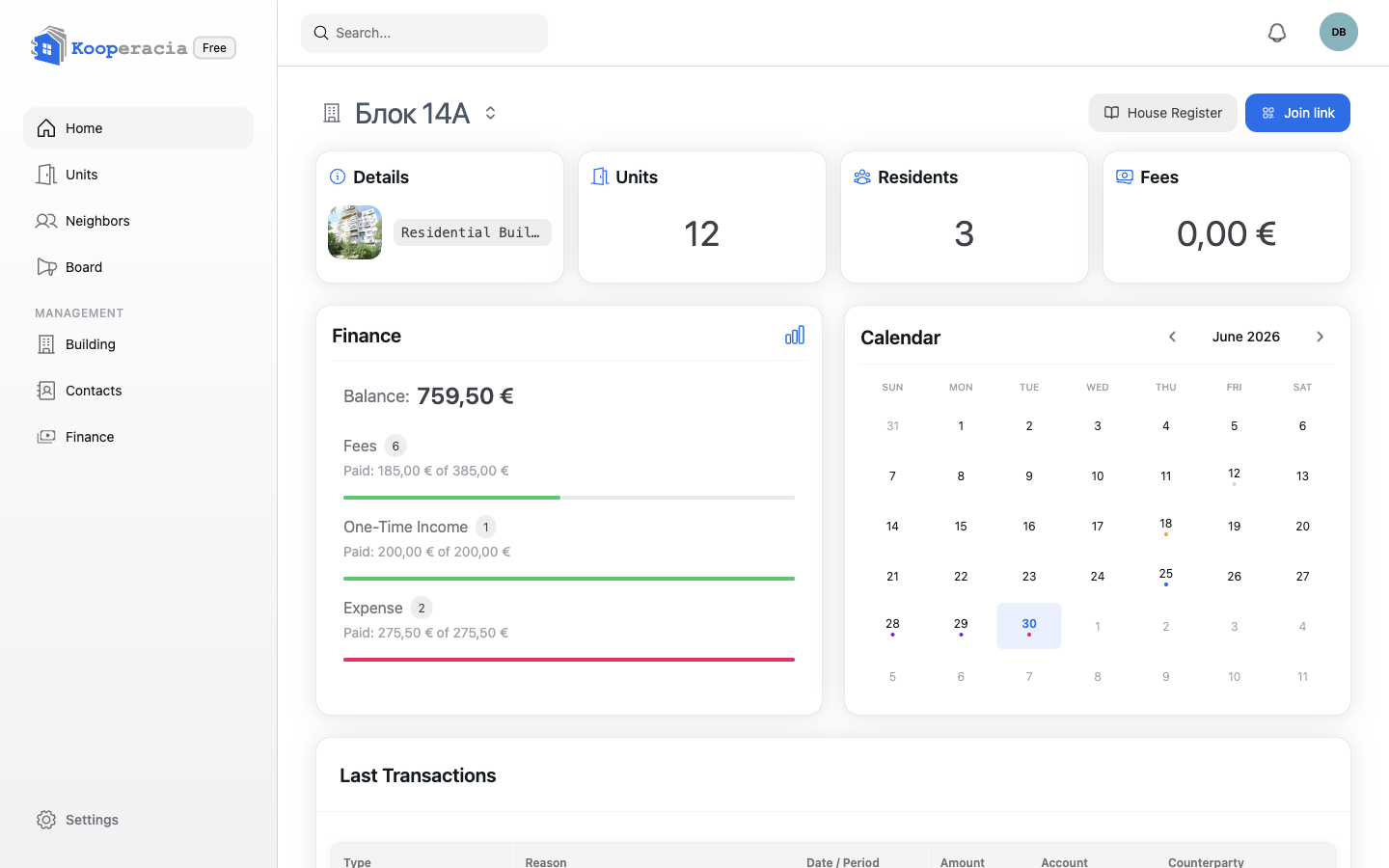
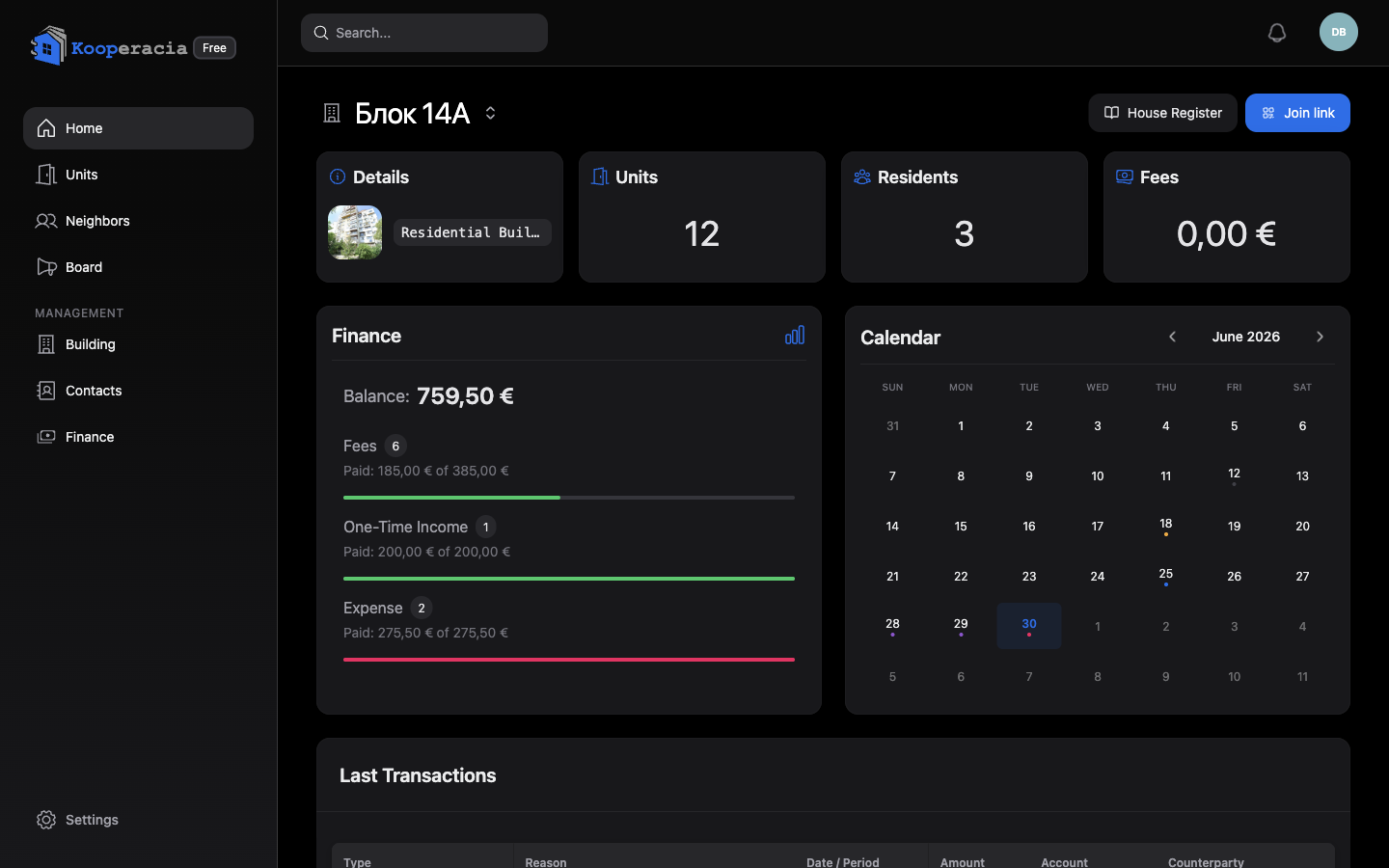 The full dashboard with the summary cards, calendar and recent movements.
Summary cards
Across the top you'll find the key numbers for your building. Each card is also a shortcut - tap it to open its detailed report (see Statistics & Reports):
| Card | What it shows |
|---|---|
| Units | Total number of units in the building. |
| Residents | How many people are registered. |
| Fees | Outstanding fees still to be collected. |
| Balance | The combined balance across your accounts; open it for the month's income, expenses, fees and deposits. |
The building card
A card for the current building shows its name and type, a shortcut to Details, and the Join link you can share to bring new members in (see Building Management).
Calendar
The monthly Calendar highlights what's coming up - scheduled events, meetings and fee due dates. Click a day to see what's on it. Add and manage entries from Events & Calendar.
Last Transactions
The Last Transactions list shows the latest financial activity, each row with its type (fee, payment, deposit, expense, transfer), reason, date / period, amount, account and counterparty (the unit or person). It's the fastest way to confirm a payment landed. The full history lives in Finance.
What residents see
Residents get the same building overview - the summary cards, balance, calendar and recent movements - for full transparency. Their menu is streamlined to Home, Properties, Neighbours, Board and Settings: there's no management section, and the building card shows Details but no join link. Adding or editing data is reserved for the Owner, Administrator and Finance Editor roles.
Next steps
- Dig into the numbers in Statistics & Reports.
- Manage day-to-day money in Finance.