Contacts
Contacts is your building's address book - residents, owners and the service providers you work with (cleaning, elevator maintenance, utilities, and so on). A contact is just a record of a person or company; it does not by itself grant access to the app.
Open Contacts to browse the directory. You can search, filter by role, and bulk-import contacts from a spreadsheet.
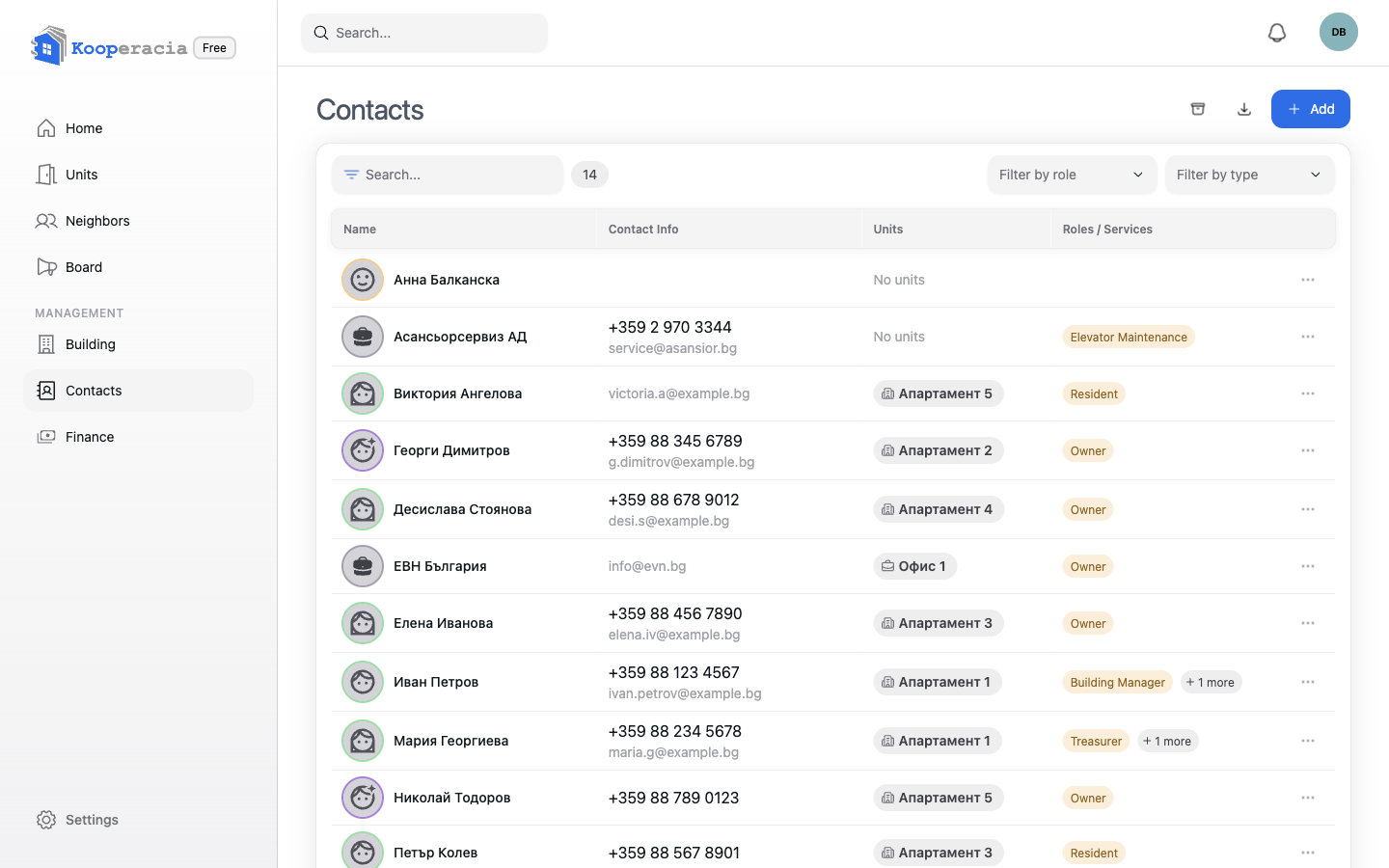
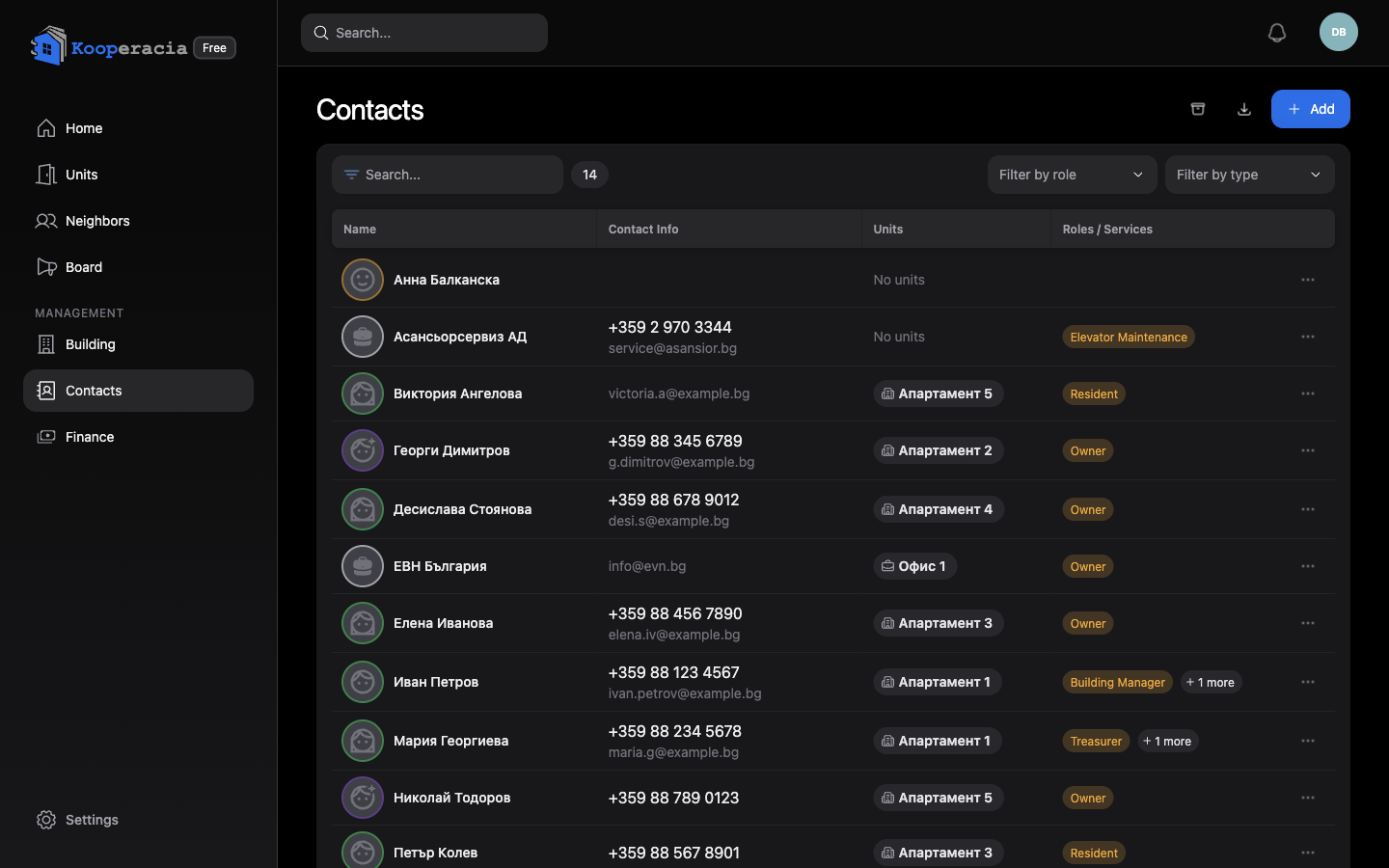 The Contacts list with the search box and role filter.
Resident view: the Contacts management page is for managers. Residents find their neighbours in the House Register, opened from the Neighbours area. It opens in a summary view; to see who lives where, turn on the Details toggle, which lists each unit together with the people in it. Residents only see contacts marked visible to all residents.
Adding a contact
Click Add and fill in the details. At the top of the form you set whether the contact's info is visible to all residents (or kept to administrators), and whether they're an Individual or a Legal entity (a company - which adds company fields like VAT number and representative).
The fields are Name, Age group, Phone, Email, Gender, Address, City, Postal code, Country, Website and Notes. Only the Name is required.
Descriptive Roles / Services (see below) and linking a contact to a unit are done separately - a contact is linked to a unit from that unit's residents list (see Units & Owners).
Roles / Services
A contact can carry one or more descriptive Roles / Services that explain their function in the building. Examples:
| Building roles | Service providers |
|---|---|
| Building Manager, Deputy Manager, Treasurer, Chairman of the Board, Board Member, Auditor, Secretary | Cleaning Service, Elevator Maintenance, Intercom Provider, CCTV Provider, Water Utility, Electricity Provider, Landscaping, Snow Removal, Construction Company |
Important: These are labels, not permissions. To let someone sign in and use the app, send them an invitation and give them an access role (Administrator, Finance Editor or Resident) - see Getting Started. When you invite someone, you can link to an existing contact so their records stay connected.
Contact visibility
For each contact you control who can see their details:
- Visible to administrators only - kept private to managers.
- Visible to all residents - shown in the shared directory so neighbours can reach them.
Choose the stricter option for personal data and the open option for shared services like the building manager or cleaning company.
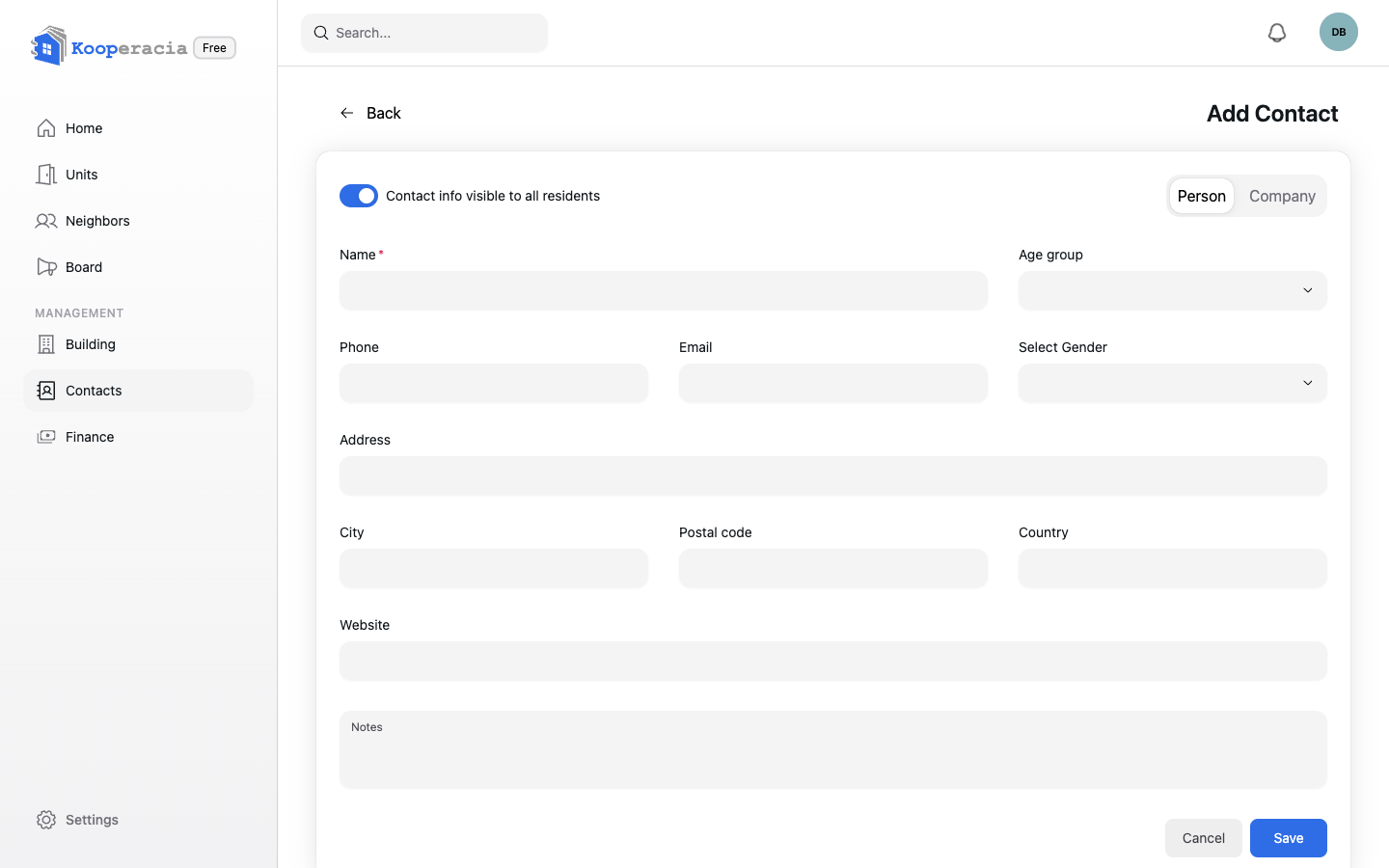
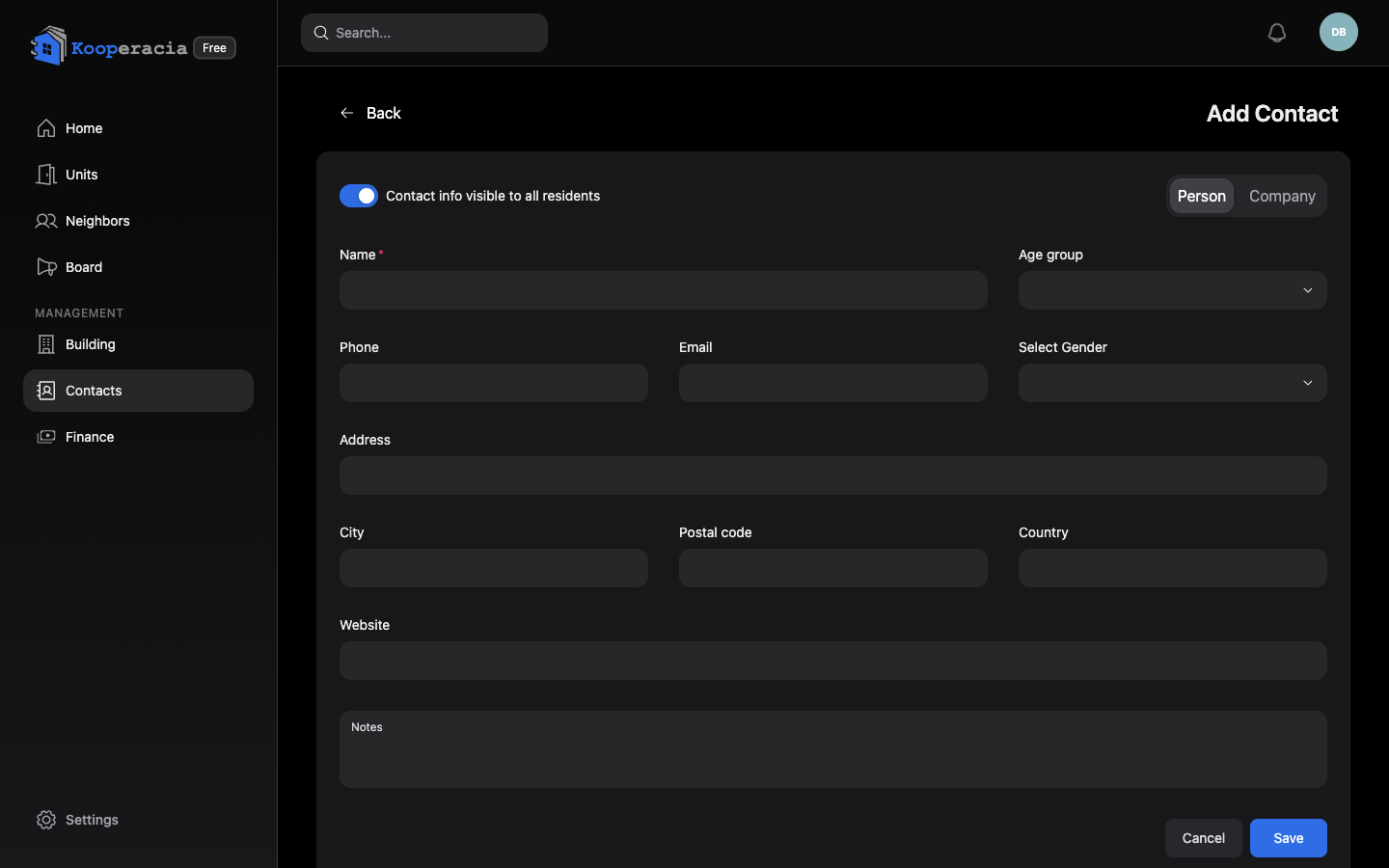 A contact's edit form showing the Roles/Services and the visibility toggle.
Archiving contacts
When someone moves out or you stop working with a provider, archive the contact instead of deleting it. Archiving removes them from the active directory while keeping their history - past roles and records - intact. Archived contacts are hidden by default; turn on Show archived to see them, then restore one at any time. Keep delete for records added by mistake.
A contact with active roles can't be archived - end those roles first.
Importing contacts from a spreadsheet (CSV)
Already keep your residents in a spreadsheet? You can bring them all in at once. Click Import contacts, then drag in (or choose) a .csv file. Importing is available to admins.
Your file needs a header row with the column names below. The order doesn't matter and the names aren't case-sensitive, but they must match exactly. Only name is required - leave any other cell blank if you don't have the information.
| Column | Required | What it should contain |
|---|---|---|
name | Yes | The person's or company's name. Rows without a name are skipped. |
is_company | No | true for a company, false (or blank) for a person. |
company_representative | No | For a company, the name of the contact person. |
phone | No | Phone number, in any format. |
email | No | Email address. If it matches a registered user, the contact is linked to that user automatically. |
country | No | Country. |
address | No | Street address. |
city | No | City or town. |
postal_code | No | Postal code. |
reg_number | No | Company registration or tax number. |
website | No | Website address. |
age_group | No | One of: child, teen, adult, senior. |
gender | No | One of: male, female, other, prefer_not_to_say. |
notes | No | Any free-text note. |
After uploading, you'll see how many contacts were imported, plus a list of any skipped rows with the reason - for example a missing name, an invalid age_group or gender value, or a duplicate that already exists.
Have an old Excel or Google Sheets file? You don't have to reformat it by hand. Open the file in an AI assistant (or paste its contents in) and ask it to "convert this into a CSV with these exact columns for Kooperacia", pasting the column list above. Save the result as a .csv file and import it.
Next steps
- Set up fees and payments in Finance.
- Invite contacts to use the app from Getting Started.