Building Management
The Building area (in the management menu) is where managers set everything up. It's organised into tabs: Building, Documents, Accounts, Users and Subscription Plan.
This area is for the Owner, Administrator and Finance Editor (who sees the financial parts). Residents don't have the Building menu - they see basic building info from the building card on their Dashboard.
Building (details, floors, gallery)
On the Building tab:
| Field | Notes |
|---|---|
| Name | The building or complex name shown across the app. |
| Building type | e.g. Residential Building, Residential Complex, Business Building (full list in Getting Started). |
| Address, City, Postal code, Municipality, Country | Used on documents and notifications. |
| Organization details (optional) | If a company manages the building: name, legal type, registration number and representative. |
| Notes (optional) | Any extra information. |
The same tab is where you set the building's Floors (the lowest and highest floor) and a Gallery of photos. Sections (entrances) are assigned per unit, in Units & Owners. The Building tab also lists the building's management and board members with their roles, plus a History button that shows who has held each management role over time.
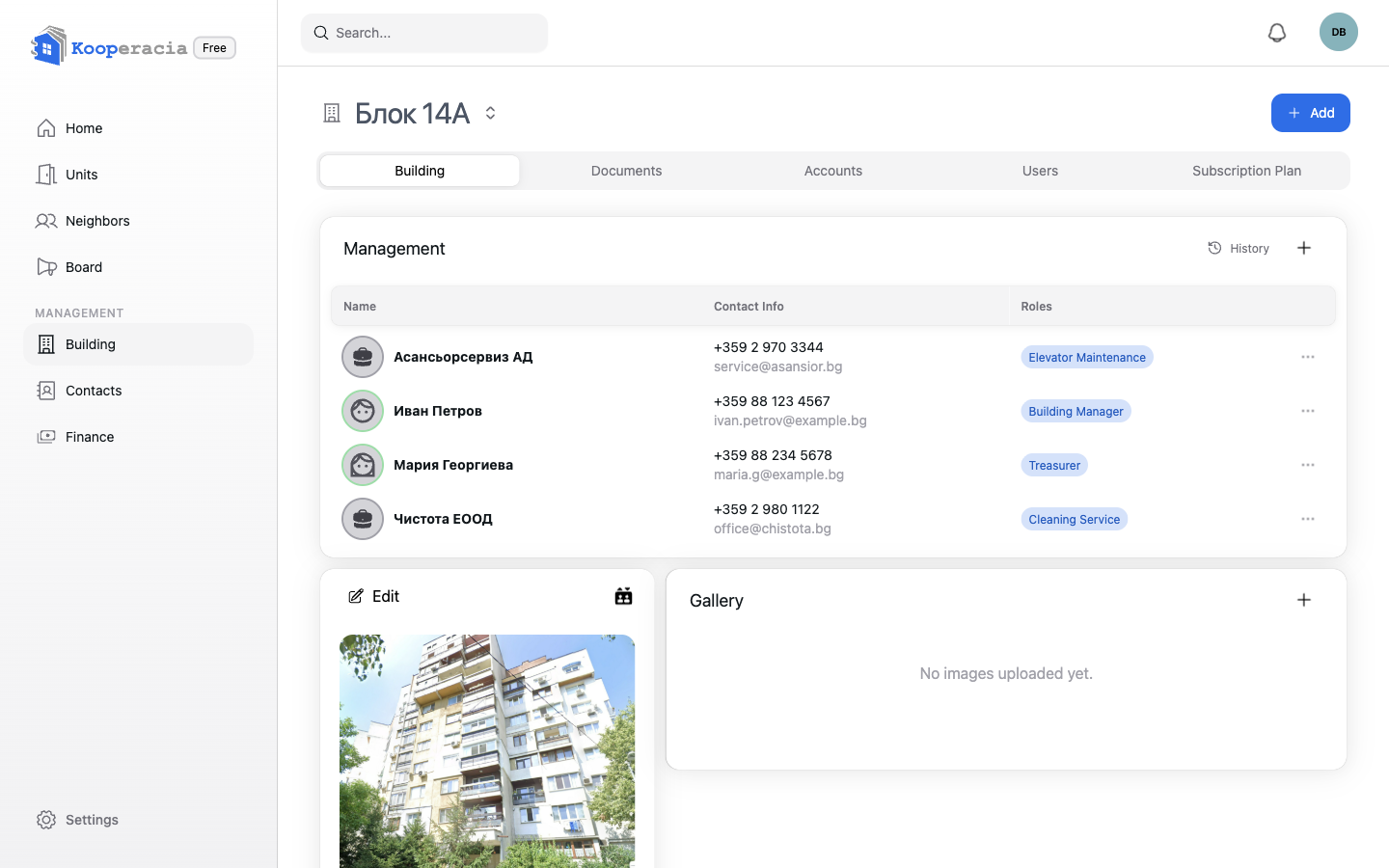
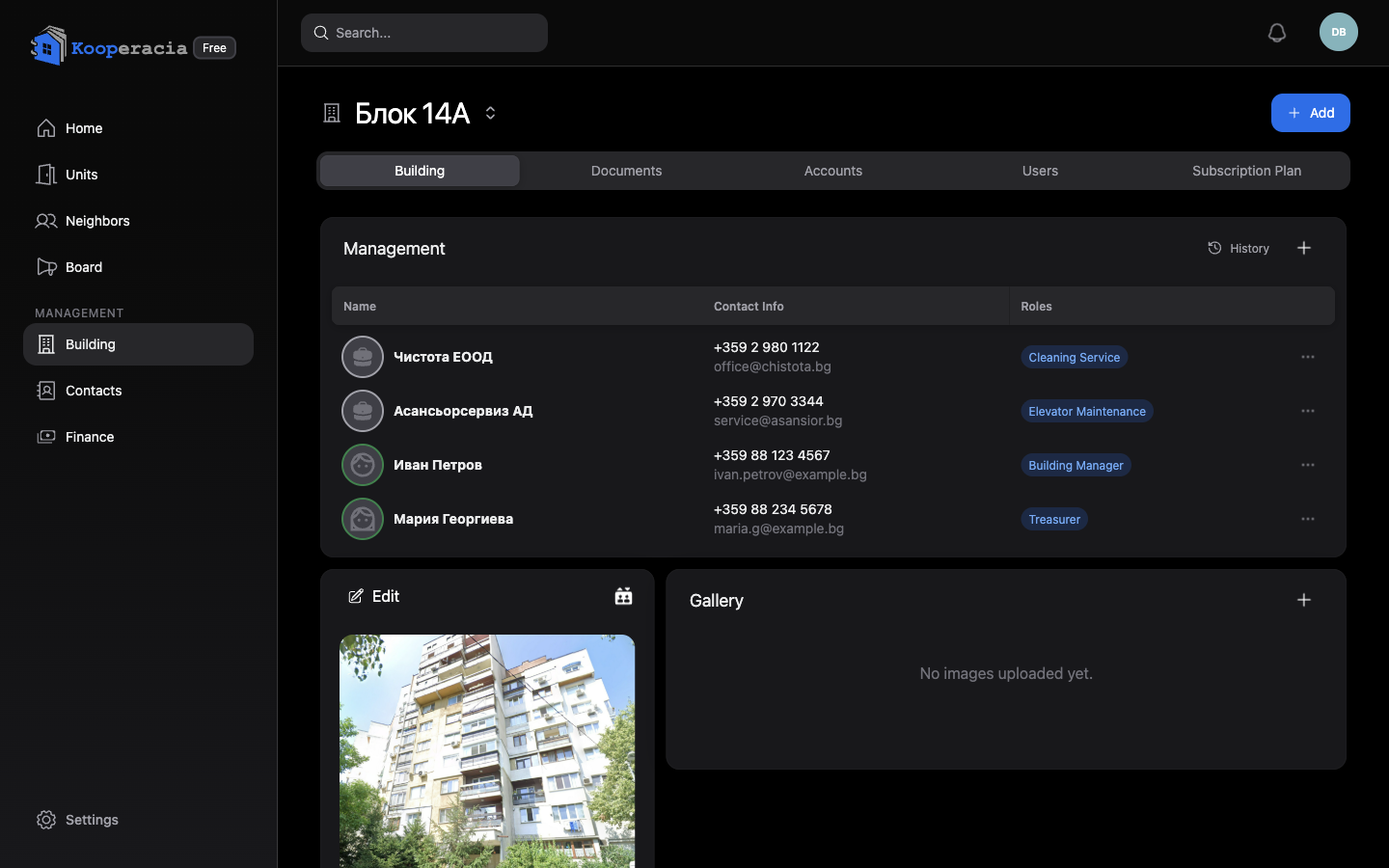 The Building tab with details, floors and the gallery.
Documents
The Documents tab is shared storage for the building's files - contracts, meeting minutes, plans, invoices and similar. Click Add to upload a document so it's kept in one place for the people who need it. (Files count toward your plan's storage - see Settings & Subscription.)
Accounts and online payments
The Accounts tab holds the building's payment accounts - create at least one:
| Account type | Use it for |
|---|---|
| Cash Register | Cash held on hand. |
| Current / Operating Account | Day-to-day bank account. |
| Reserve / Fund Account | Money set aside for repairs and renovation. |
| Deposit / Savings Account | Longer-term holdings. |
For bank accounts add the bank name, IBAN and SWIFT/BIC (the app validates the IBAN). The same tab has Payment Services, where you connect one or more online payment providers - IRIS Pay and ePay / EasyPay - so residents can pay their fees online. With ePay/EasyPay, residents can also pay in cash at any EasyPay desk using their unit's subscriber number. See Finance for how money is recorded.
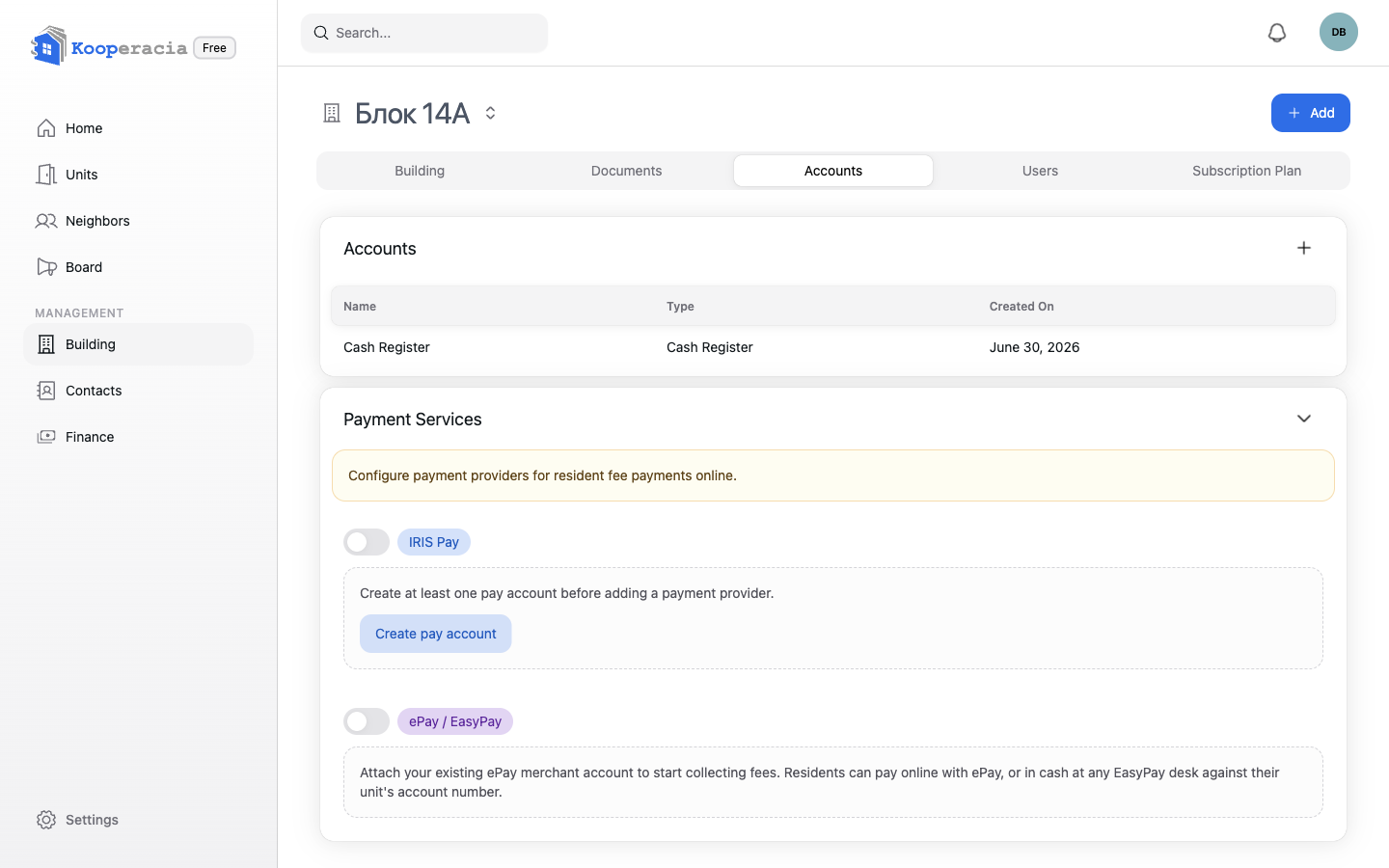
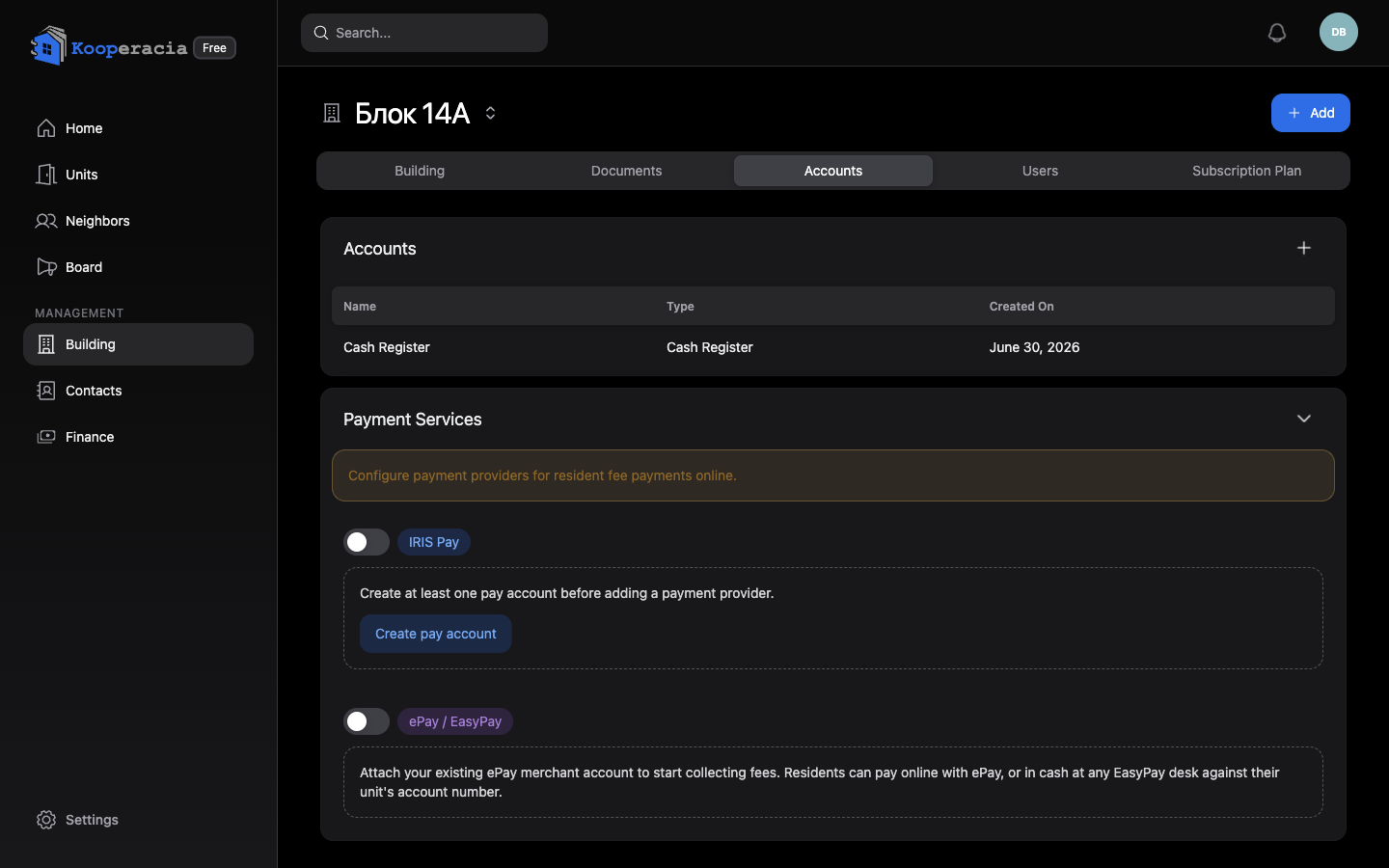 The Accounts tab with a bank account (IBAN) and the Payment Services section.
Users and the join link
The Users tab is where you manage who can access the building:
- Invite by email - click the + to open the invite dialog: enter the person's email, optionally link them to an existing contact, choose their access role (Administrator, Finance Editor or Resident - see Getting Started), and send. They receive an email with a link to join.
- Share a join link - click Join link to open a QR code and shareable link for the building. Copy the link, or download it as a PNG or PDF poster. Anyone you give it to can use it to join.
- Manage existing members from the list - edit their access or remove them.
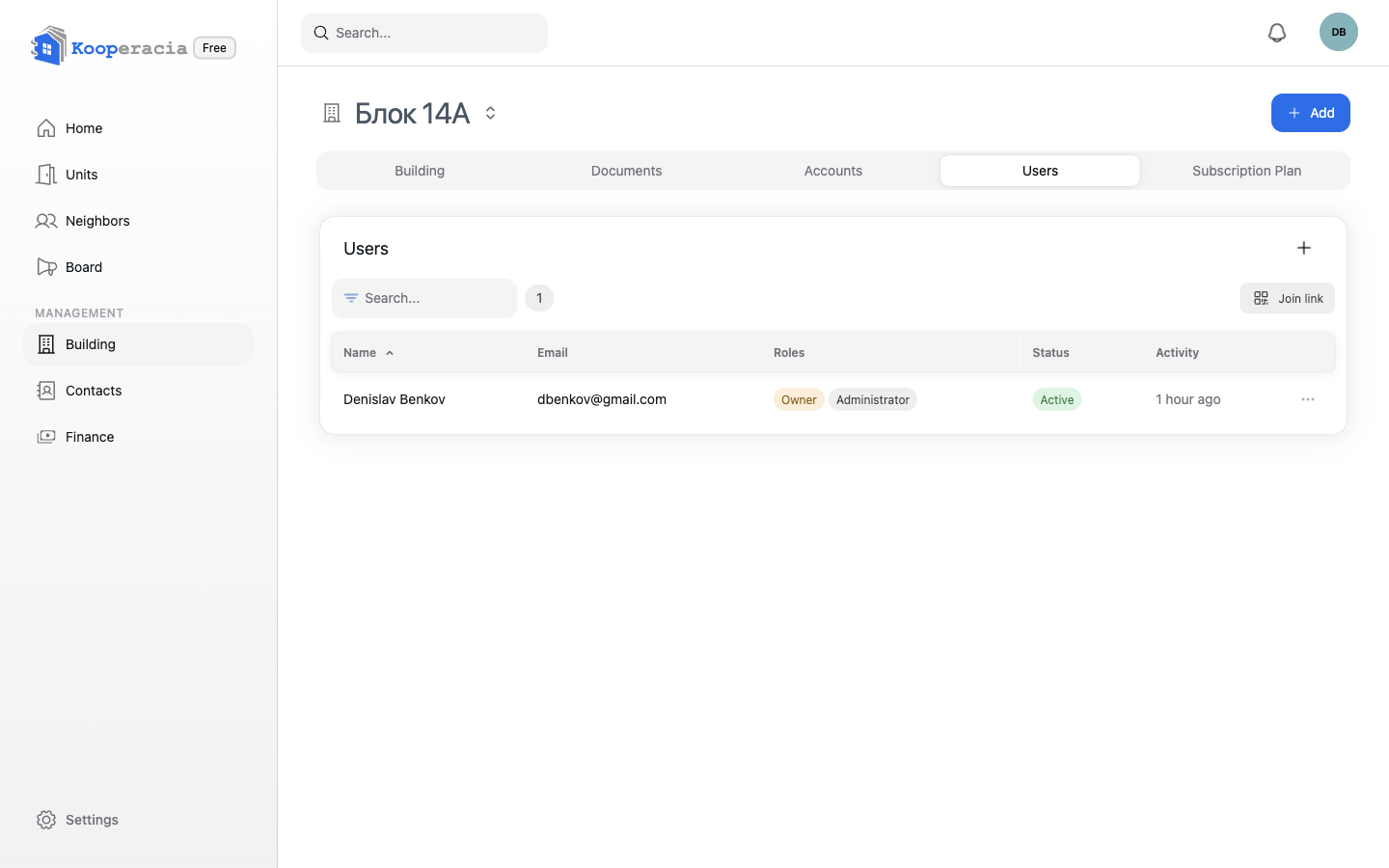
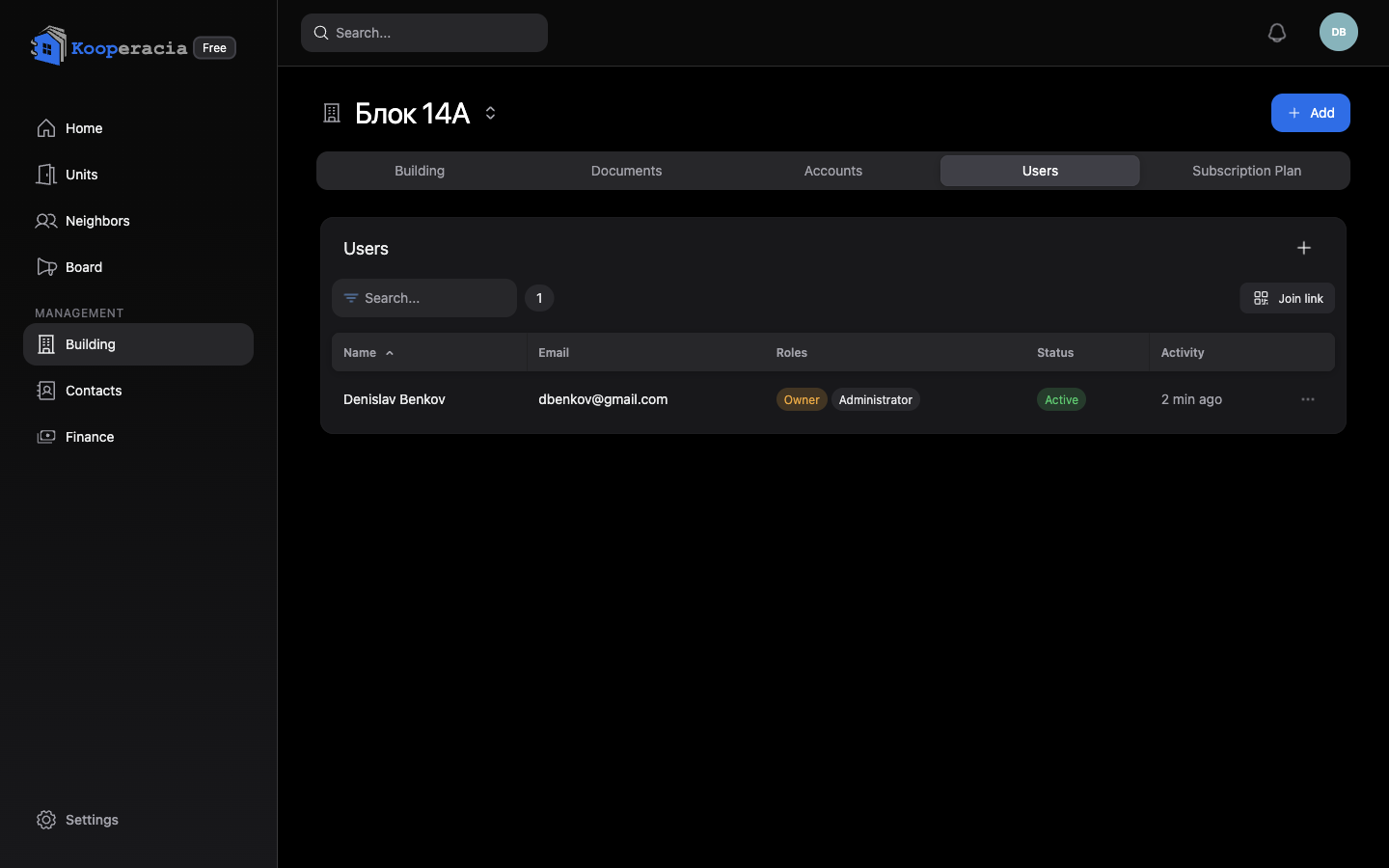 The Users tab with members and roles, the Invite (+) button, and the Join link / QR.
Subscription Plan
The Subscription Plan tab shows and manages the building's plan - current plan, usage (units), files & storage, billing rules and invoices. Full details are in Settings & Subscription.
Resident registry (House Register)
The official record of units and the people in them is the House Register, generated automatically and downloadable as a PDF. See Statistics & Reports.
Next steps
- Add your apartments and people in Units & Owners.
- Set up fees and payments in Finance.