Finance
The Finance module is the heart of Kooperacia: it tracks every euro that comes in and goes out, generates monthly fees, records payments and keeps each unit's balance up to date. Once it's set up, the Dashboard and Statistics come to life.
This guide follows the natural order: accounts → fees → payments → transfers → online payments.
Resident view: the Finance module - accounts, the fee wizard, expenses and transfers - is for managers (Owner, Administrator, Finance Editor); residents have no Finance menu. Residents see what they owe on the Dashboard and on their unit, and pay there (online, if enabled - see Online payments below).
1. Accounts
Every transaction belongs to an account - a Cash Register, a bank account, a reserve fund, and so on. Accounts are created under Building → Accounts, not on the Finance page - see Building Management. Set up at least one before you record anything; you'll see each account's balance in the Balance report.
The Finance page itself is for entries. The dropdown at the top switches between four views - Fees, Expenses, One-Time Income and Account Transfers - and the Add button creates an entry in the current view.
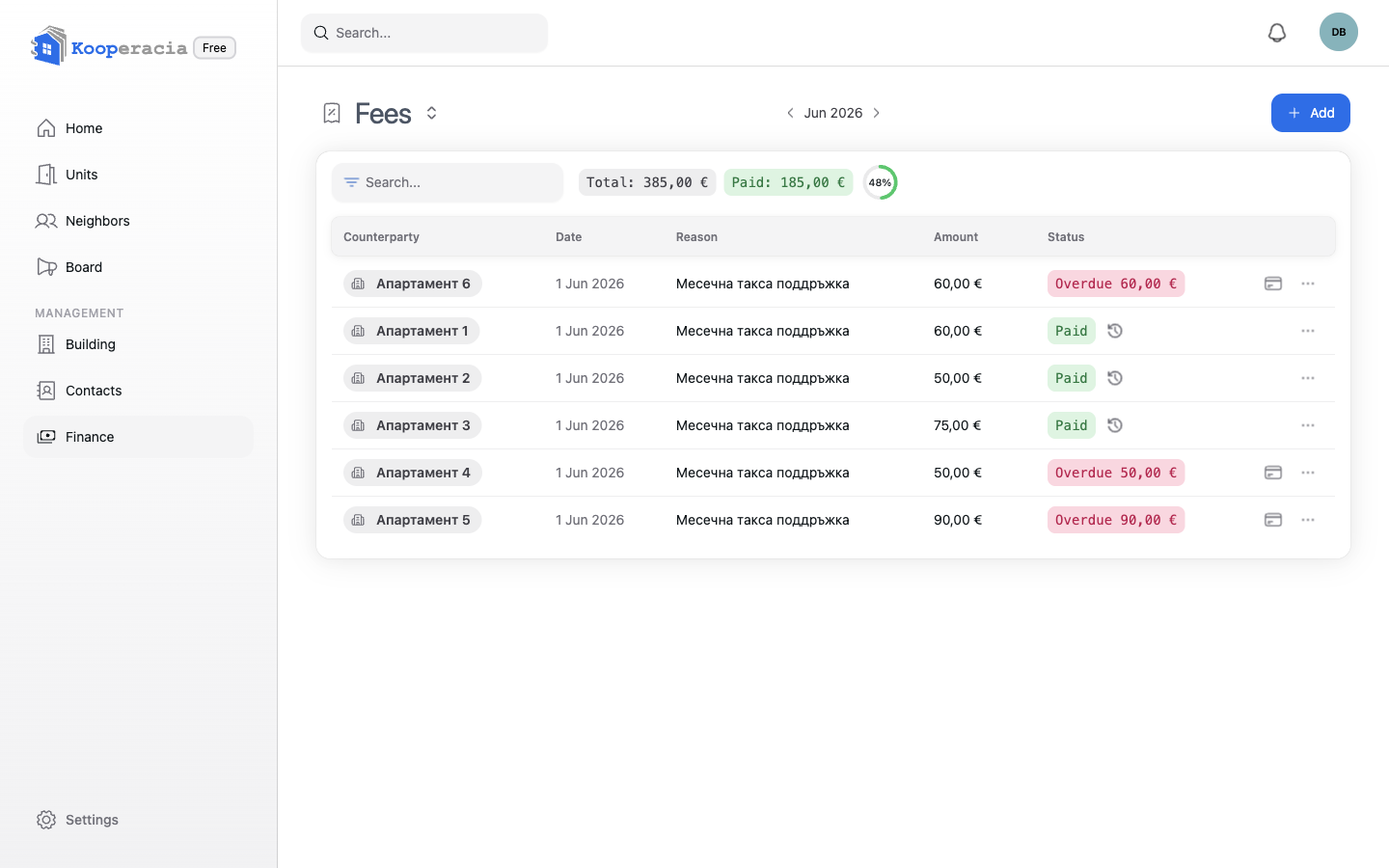
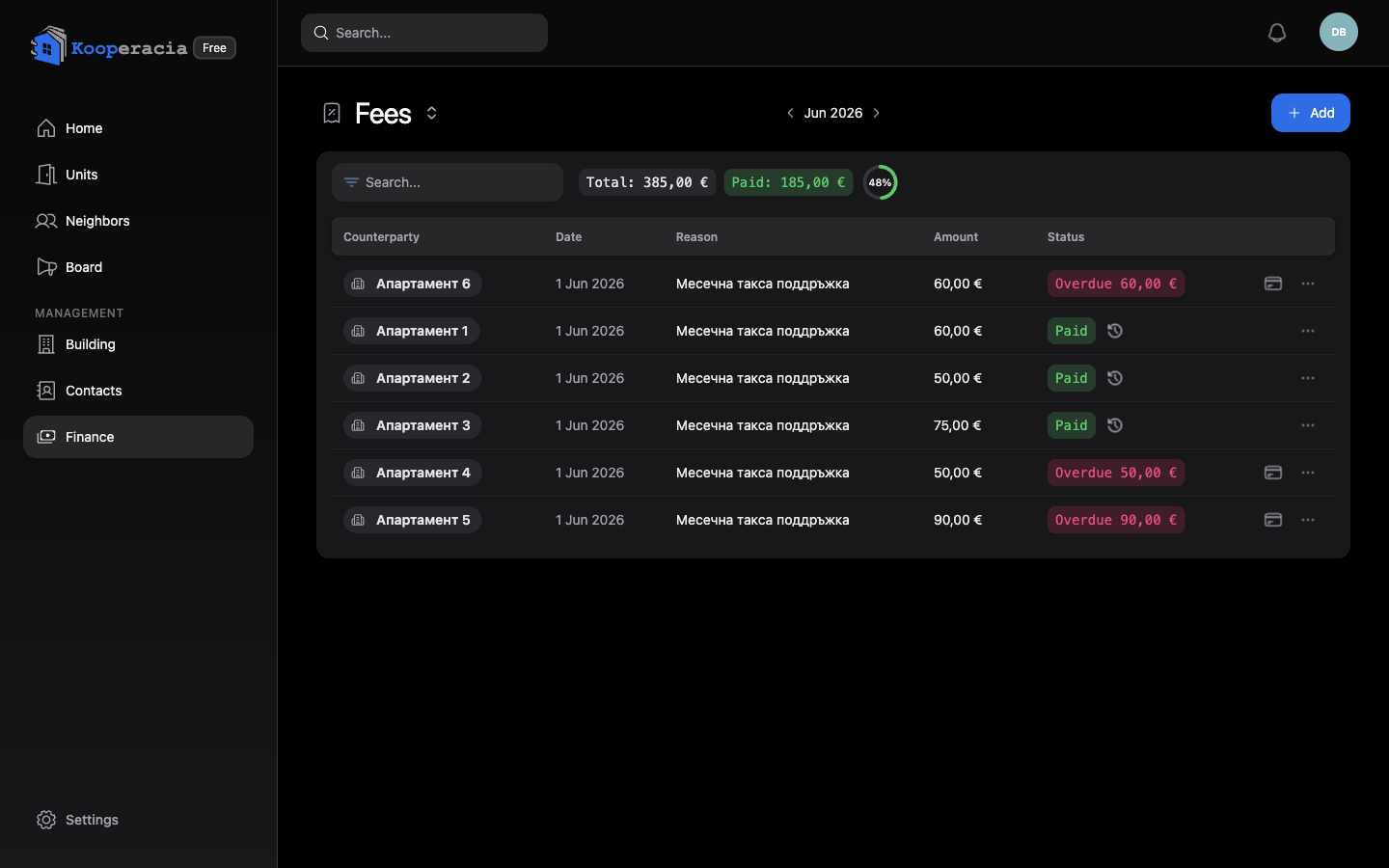 The Finance page showing the Fees view and the switcher (Fees / Expenses / One-Time Income / Account Transfers).
2. Generating fees (the fee wizard)
Rather than adding fees one unit at a time, use Generate Fees to create a batch - for example the monthly maintenance fee for every unit:
- Enter the reason (the basis for the charge, e.g. "Monthly maintenance fee - June"), the amount and the period.
- Choose the Distribution Method - how the cost is split across units:
- Per Unit - the same amount for every unit,
- Per Resident - by the number of residents,
- Per Ideal Parts Share - proportional to each unit's ideal share, or
- Shared Equally Between Units - the total divided equally.
- Set the due date.
- Review the per-unit breakdown and submit - the fees are posted to every unit at once.
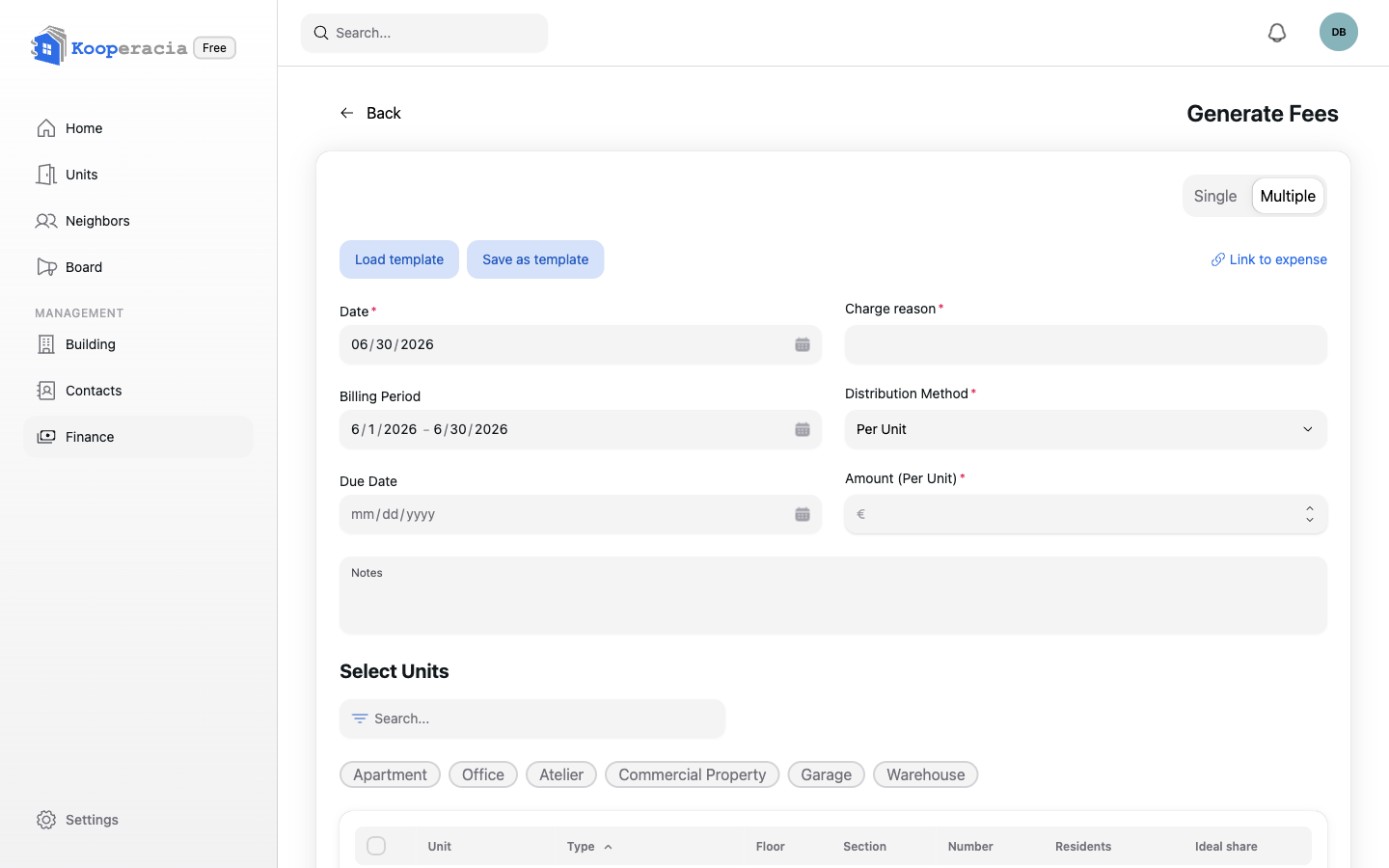
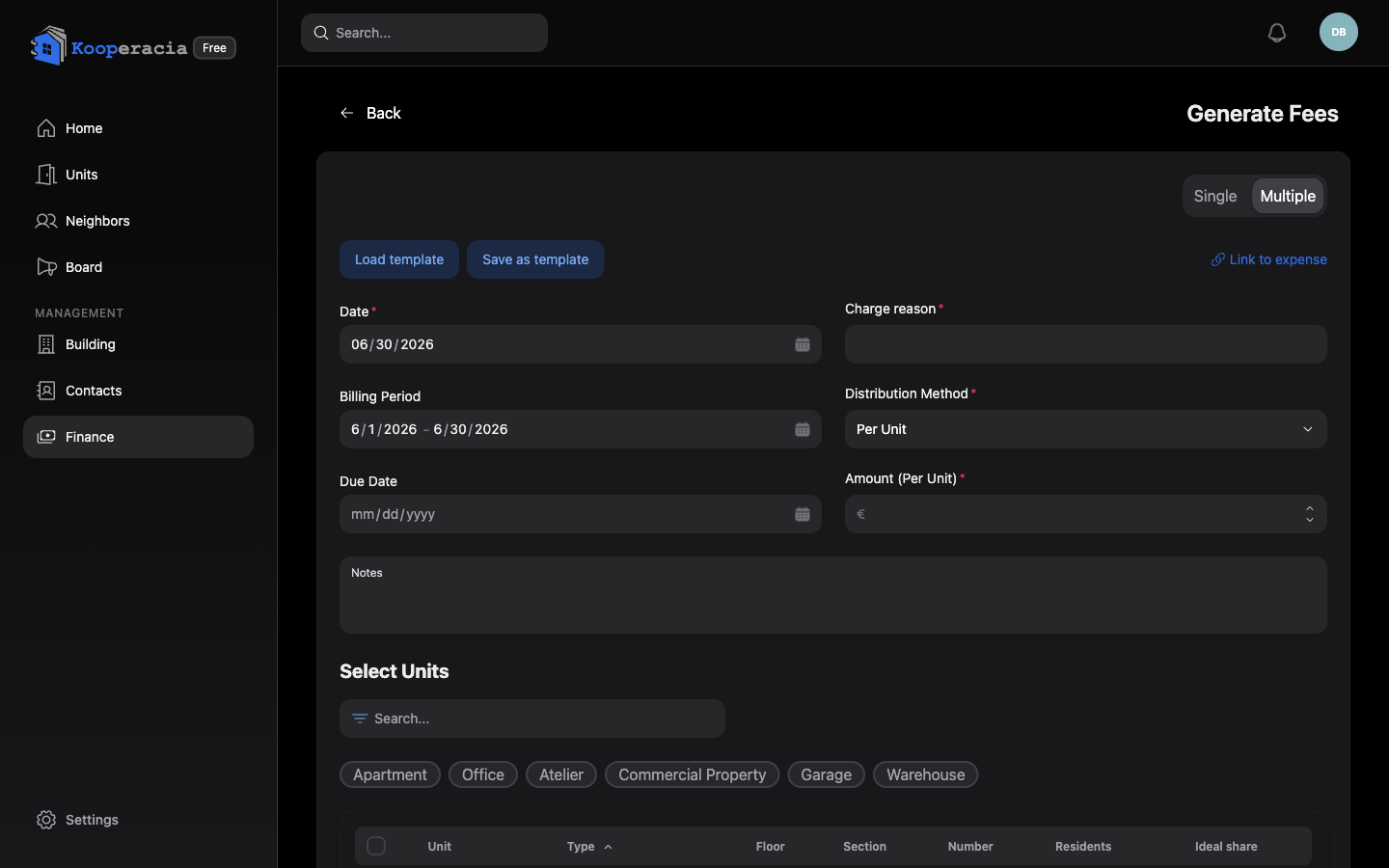 The Generate Fees wizard with the split method and the per-unit preview.
You can also add a single fee or a one-time income when you need a one-off entry. Overdue fees are flagged as Overdue, and the due date can never be earlier than the entry date.
3. Recording payments and deposits
Recording a payment
When a resident pays a fee:
- Open the unit (or the fee) and click Pay.
- Tick the fees the payment covers and set the amount for each.
- Choose how it was paid - Cash or Bank transfer.
- Save. The unit's balance updates immediately and the fee is marked paid.
Deposits - a prepaid balance on the unit
A deposit is money a unit pays in advance. It's kept as a credit on that unit (not in any one bank account) and is ready to cover that unit's future fees - useful when an owner pays a few months ahead or rounds a payment up.
To add money to a deposit, overpay a fee:
- Record a payment as usual (Cash or Bank transfer).
- Enter a payment amount larger than the fees you're settling.
- The extra shows up as a green Deposit assigned to that unit and is saved as its deposit balance.
To pay a fee from the deposit:
- Open Pay for the unit's fee.
- Switch the method to Deposit - you'll see the unit's Available deposit.
- Tick the fees to cover and save. The amount is taken from the deposit and recorded as a Payment with deposit. If you ask for more than is available, you'll see Insufficient deposit.
The amount left appears as a Deposit €… chip on the unit in the Units list and on the unit's page, so owners and managers can always see what's left.
4. Expenses and transfers
- Add Expense records money leaving an account (e.g. paying the cleaning company).
- Add Transfer / Account Transfers move money between your own accounts - for example from the current account into the reserve fund. The app prevents transfers that exceed the available balance.
5. Online payments
If you connect an online payment provider - IRIS Pay or ePay / EasyPay, set up under Building → Accounts - residents can pay their fees online from inside the app:
- Residents see their unpaid fees and the total to pay.
- Card/online payments are confirmed quickly; bank transfers take a few business days.
- With ePay / EasyPay, residents can pay online or in cash at any EasyPay desk using their unit's subscriber number.
- Each attempt shows a clear status - successful, pending, failed or cancelled.
If a resident has no unpaid fees, the app simply shows "No unpaid fees found."
Next steps
- Watch the numbers appear in the Dashboard.
- Analyse balances and trends in Statistics & Reports.
- Turn on online payments in Settings & Subscription.